Showing posts with label Java. Show all posts

Saturday, 11 January 2020

2019 in Retrospect


This year, I've had some progress on my pet projects. The progress rate was slower in Q4 as we have bought a house. We'll move there in 2020.

Maintaining a house will require some work and learning activities. I expect that the pace of my pet projects will be slower than before.

2019
  • TrafficControl (C++ / Qt) - Paused
    • No work on this project in 2019.
  • StockReader/StockAnalyzer (C# / SQL / MSVC) - Current focus
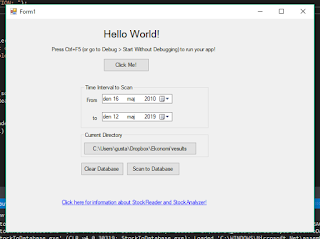
    • Creating a C# program that scans a folder for result files, extract stock records and parses the data to a database. I've got some experience with Microsoft Visual Studio by now and I'm still learning...
    • Next step will be to fix issues with data conversion to SQL
    • After that, I'll explore some Machine Learning algorithms and check if I can predict stock price changes based on key numbers.
  • ApartmentPredictor (Python) - Done
    • A Python script that made Linear Regression Analysis of past apartment prices in an area. The predictions were based on the apartment size and the monthly cost. 
  • Machine Learning Course at Stanford (Octave / Matlab)  - Done
    • I successfully attended and finished the course in Machine Learning from Stanford University.
    • I applied some machine learning for a pet project for a friend. The simulations indicated that the result was random to a very high degree,
  • TravelTimeCalculator (Java / SQLite / Android Studio) - Done
    • I've completed the project now. TravelTimeCalculator allows the user to compare travel time/cost between several positions on a map. They can also customize the travel cost to consider both travel time, economic costs and environmental cost.


  • Work (C / Python / 4G / 5G) At work, I've focused on test and some coding for 5G with focus on antenna calibration.
To Do in 2020:
Prio 1: The New House!
Prio 2: StockReader/StockAnalyzer

Saturday, 16 February 2019

TravelTimeCalculator: Adding a Preference Activity

My app can now query Google Directions for the best travel mode with respect to duration and present that on a map, when the user is tapping on it.

I want to let the user define what the best travel mode is, by selecting some parameters.

There will be three options for estimating the best travel mode:

  • Duration
  • Distance
  • Cost
Cost will consider the following parameters:
  • Travel duration and distance
  • Start and stop time (unlocking and locking the bike, finding a parking space for the car)
  • Travel costs per km (fuel cost and vehicle depreciation)
  • Travel costs per travel (transit ticket price)
  • Emissions (CO2e per km)
  • Time cost (SEK/s)
  • Environmental cost (SEK/CO2e
The app will calculate the cost for each travel mode:

For transit and driving, I'll use the estimates from klimatsmart semester (climate-smart vacation) to estimate the emissions per person-kilometer.

Adding a Settings Activity to the App
Users will need to change the settings above. I started by adding an activity to the project:

Specify the parent class

A couple of new files are created automatically, with the necessary code to make the new activity appear. Now, I need to understand the anatomy of the new files.

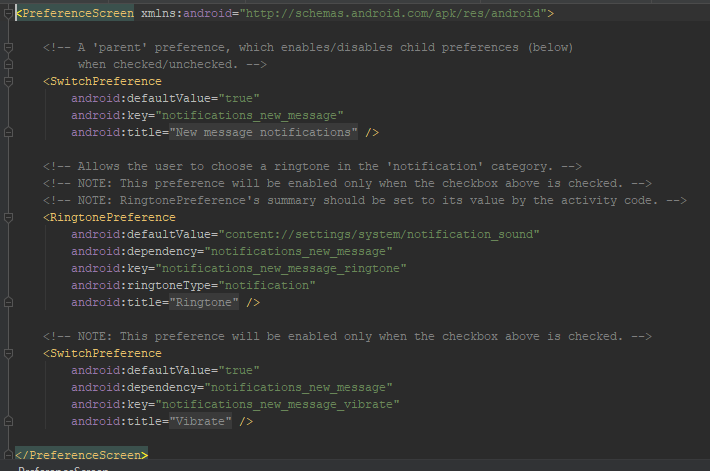
The preferences are defined in xml files in the java/res/xml folder
Currently, the code is autogenerated. The settings are divided into three submenus.
Preferences for ringtones are located in a submenu:

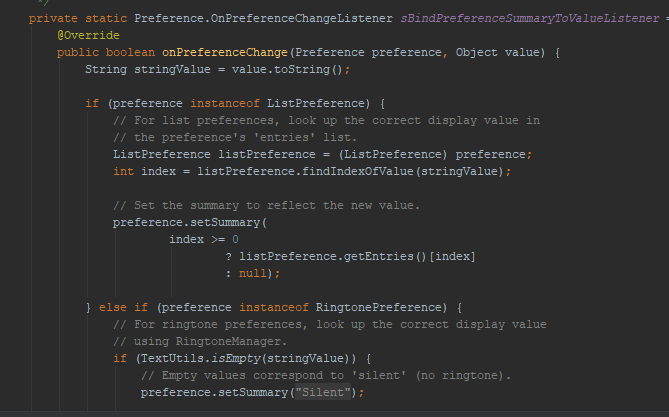
A listener is declared in the SettingsActivity class

The settings are designed in the XML file and accessed from the SettingsActivity class.

In the next blog post, I will explore the settings and its listeners further.

Saturday, 2 February 2019

TravelTimeCalculator: Adding Multiple Markers for Directions

TravelTimeCalculator shall illustrate the best travel mode for different coordinates, related to the target of the map. I'll add the markers to an array of markers, either when the user taps the map or when the user moves the map to a new location.

Adding Markers After Tap

I store the markers in an array of markers.

Step 1: Adding markers dynamically when user taps on map
I added two lines of code to the onMapClicked method:

Step 2: Changing the added markers
CheckDirectionsFromDb will check if the direction has data for all transport modes. In that case, it will call updateMarker for that coordinate:
Since the method doesn't care whether the center of the map equals orig or dest,
I'll let the method updateMarker do that check,
To find the marker to change, the app searches all existing markers and compares with the tapped location:
First, the script determines which coordinate is connected to the marker.
After that, it changes the connected icon. Note the icons to the right.
The result is markers added to the map.

For some strange reason, the title is hidden when another marker is added.

The next blog post will discuss how the program shall add when moving the map. The markers should be cleared and existing directions shall be added, if found in the database.

Saturday, 26 January 2019

TravelTimeCalculator: Adding Markers With Custom Image

The last step (for now) is to add markers that represents the quickest/shortest transport modes between the center of the map and some other coordinates.

I'll start with adding a marker at the center of the map (target). I'll round the coordinates to the closest three-decimal number (36.2123321->36.212). The marker will be updated every time the map moves.

There will also be an arbitrary number of markers representing the existing directions from the current origin coordinate. Those markers will appear and disappear, depending on the current location.

A snippet will show the best distance/duration and an icon will show the best mode of transport

Single Marker

It's easier to implement the single marker, so I'll start with that one for now.
The first step is to simply add the marker at the center of the map. After changing the icon of the marker is now changed in two steps:
Step 1: Add an icon to the resource file

Step2: Let the marker object point to the icon resource 


To make the marker update when the user moves the map, I made a small change in the onCameraMove listener in the map object.
The code rounds the coordinates to the closest 3rd decimal. 
The purpose of this is to reduce the number of possible coordinates. Otherwise, I'd have zillions of coordinates in the database, many of them only feet apart.

Saturday, 12 January 2019

TravelTimeCalculator: Selecting Coordinates to Scan for Directions

I'll simplify the selection of destination coordinate to scan for. Instead of having the app selecting some coordinates around the center, I'll let the user select the coordinates by tapping on the map.

The work flow will be like:
  • User re-zooms and pans the map to a new origin:
  • Clear existing markers (clearMarkers)
  • The app searches for any existing directions starting or ending at the coordinates (getDirectionsFromDb)
    • If found, it adds corresponding markers (addMarkers).
  • If the user taps the map,
    • If coordinates are not found in database, (getDirectionsFromDb is null)
      • Send Google Directions requests, (getDirectionsFromUrl)
      • Save response to database (saveDirectionsToDb)
      • Add marker to map
    • If coordinates are found, add marker to map
Step 1: Add a OnMapClickListener
I followed the instructions regarding detecting a tap on map from the official documentation. As soon as the map was installed, it crashed. The crash was my mistake, since I added the code in "onCreate". After adding the code to "onMapReady", it worked.

Step 2: Create a new class, TravelTimeHandler that handles the requests and decides whether to send a Directions query or query the database. It shall also add data to the database.

I moved the methods getDirections and readDirections to that class.

Step 3: Define what methods new methods to use.

  • readDirectionsFromJson
  • getDirectionsFromUrl
  • getDirectionsFromDb
  • saveDirectionsToDb
  • clearMarkers
  • drawMarker

Step 4: Implement those methods.
I'll cover this step in the next blog post

Saturday, 1 December 2018

TravelTimeCalculator: API Issues, TDD and Checking Records In Database

After making the app target API level 28, I got a strange crash. I found that I need to specify the requirement for Apache HTTP Legacy library, and after adding that dependency, the app was running as before.


The next issue that I saw was that my database method dbHelper:onCreate wasn't called as intended. dbHelper is inherited from SQLiteOpenHelper.

That behaviour was actually correct. The onCreate method is only called when Android needs the database.

Many of the current constants in dbHelper are hardcoded. I need to replace them with strings that I can change in the top of the file.


First TDD Test
The first TDD test checks that I can add a simple entry to the database (containing only one direction) and that I can read it out from the database.

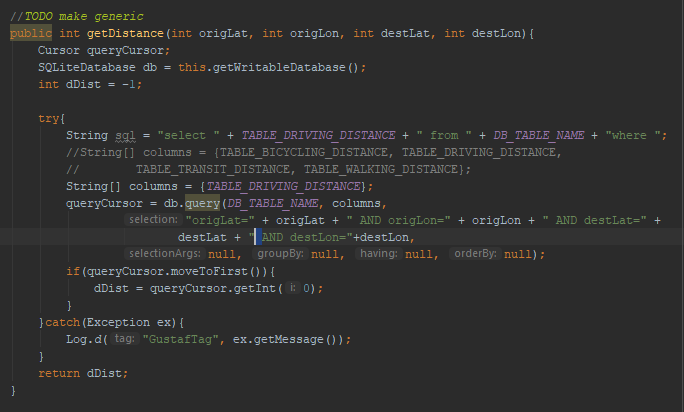
The test intially failed since I've stubbed the addEntry method. After fixing that, I got an exception when querying the database.

That issue was caused by a typo. I missed to add a white space in the SQLite query.

Once that was fixed, I was able to pass the first Test Driven Development test case. I've updated the Github repo.

The next TDD test cases will cover:
  • How to add data to an existing entry
  • How to handle queries for non-existing entries
  • Ensuring that the database won't add entries in the opposite direction. If "From A, B to C, D" exists, "From C, D to A, B" shouldn't be added.

Saturday, 24 November 2018

TravelTimeCalculator: Setting Up dHelper on Android Unit Test for TDD

Now, I know how the database should be organised. For the implementation, I'll use Test-Driven Development that I described in an earlier blog post for TrafficControl.

The first step is to be able to initiate the database helper at all.

When trying to do that in a local unit test, I wasn't able to initiate the dbHelper class since I couldn't get the context for the app. The reason is probably that I need more resources such as a database that will require an Android environment.

Instead, I was able to use the context in an instrumented unit test. This will be much slower than running locally, since the test needs to be loaded into a real or simulated phone. After some dependency issues for the test APK package that I didn't see for the app, I was finally able to test a simple instrumented test.


In the test, I added a dbHelper that I didn't use. For the local unit test, that step caused a crash.

More information about Android testing can be found here.

The first Test-Driven Development test will be to add columns to the database and check if those columns exist.